Preparing
If you create your mod with UndertaleModTool, then the very first step you need to do, is create a zip of all files that are necesary for your mod. The procedure usually is as follows:
- Navigate to the folder where you have your mod. The structure (On Windows) should look like this:
TODO:
when modding on non-windows becomes more prominent, post structure on Linux/Mac/Android too and show via tabs
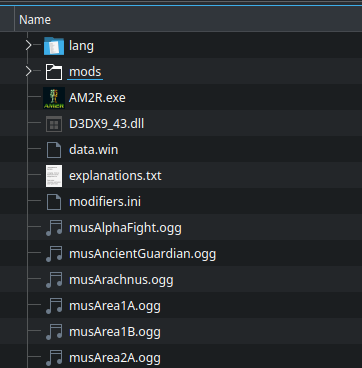
-
Select all files in there. If there is a file called
profile.xmlin there, unselect it. That file is necessary for the AM2RLauncher, and including it will make your mod uninstallable. -
Right Click and select the “Create .zip” option. This option may be named differently depending on which archival software you have.
You now have a zip of your mod, which I’ll call “Raw Mod” for future reference. For double checking, your zip should not contain a subfolder.
If you create your mod with GameMaker: Studio 1.4, you can get your Raw Mod by just exporting your game in a .zip format.